Run Qiskit code in your browser
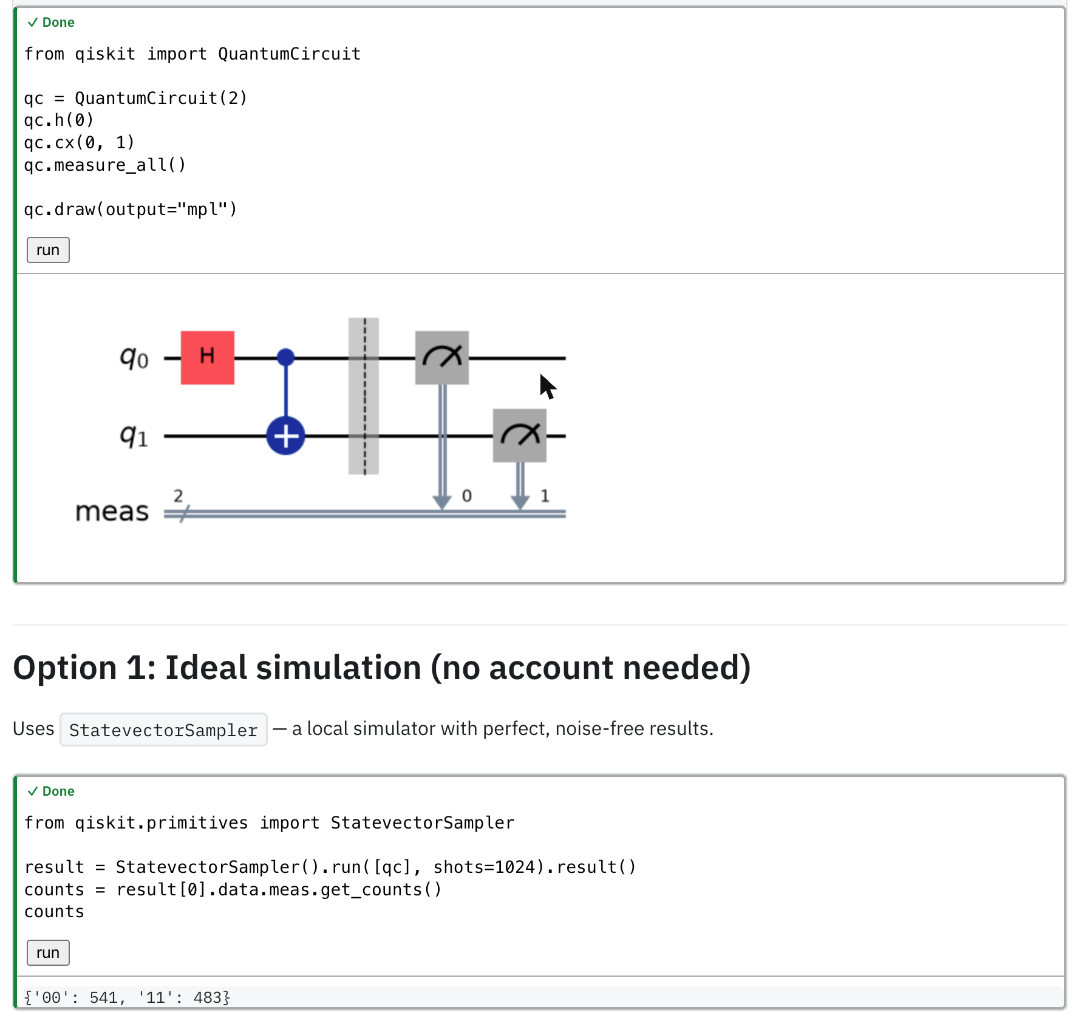
Every tutorial, guide and course page on doQumentation has a Run button. Click it and the page's code cells become live: edit them, run them, and see the circuits and plots appear below. There is nothing to install and you need no account to start.
Run your first quantum circuit
How it works
Run connects the page to a Jupyter kernel with Qiskit already installed. On doqumentation.org that kernel comes from Binder, a free service; the first start can take a moment. Cells run in order, show a colour while running (amber), when done (green) or on an error (red), and Run All executes the whole page with a progress counter.
Help when something goes wrong
When a cell fails, doQumentation recognizes common causes, such as a missing package, a name defined in an earlier cell or a lost connection, and says what to do. A missing package gets an Install button; after the install the cell runs again on its own.
Other ways to run the same code
Prefer a notebook? Every notebook page opens in Google Colab or in JupyterLab with one click. For classes, the same pages run on IBM Cloud Code Engine or fully offline from a Raspberry Pi.
Try it on these pages
Frequently asked questions
Do I need to install Python or Qiskit?
No. The code runs in a Jupyter kernel that already has Qiskit installed. Your browser only shows the page and sends the cells to the kernel.
Do I need an IBM Quantum account?
No. By default the code runs on a simulator. Add your IBM Quantum credentials in Settings only if you want to run on real quantum hardware.
Is it free?
Yes. doQumentation is open source, and the default kernels come from Binder, a free public service.
Are my code changes saved?
No. Edits live in the running kernel and the page; reloading the page brings back the original code. To keep your work, open the notebook in Colab or JupyterLab.